The abbreviation NAS stands for Network Attached Storage: a data store connected to your network and therefore reachable from any device on it. Through the user and access management in the NAS's web menu, you decide which user in the home network may view which content (read permission) or even change it (write permission). To keep the NAS as reachable as possible as the central store in the home network, it is usually connected by network cable to a free LAN port on the router.
Against a conventional USB store — an external hard drive or memory stick — a NAS holds some decisive advantages. Every device in the home network (PCs, notebooks, tablets, smartphones, but also smart TVs and games consoles) can access its contents at any time and even simultaneously. No more constantly re-plugging external drives or hunting for mislaid sticks; even smartphones and tablets, which usually lack a suitable USB port, reach the complete photo archive or the ripped DVD collection on the NAS via an app.
This comparison covers 33 NAS models from a range of manufacturers. Most carry two drive bays, with a few one-bay and four-bay devices examined as well — each "bay" takes one internal drive, so a 2-bay NAS houses two internal hard disks. With few exceptions, the prices quoted refer to the empty enclosure: budget additionally for two internal 3.5-inch hard drives, unless you already own them. Every tested model is also sold with pre-installed drives in various capacities — correspondingly dearer, but sparing you the separate purchase and installation.
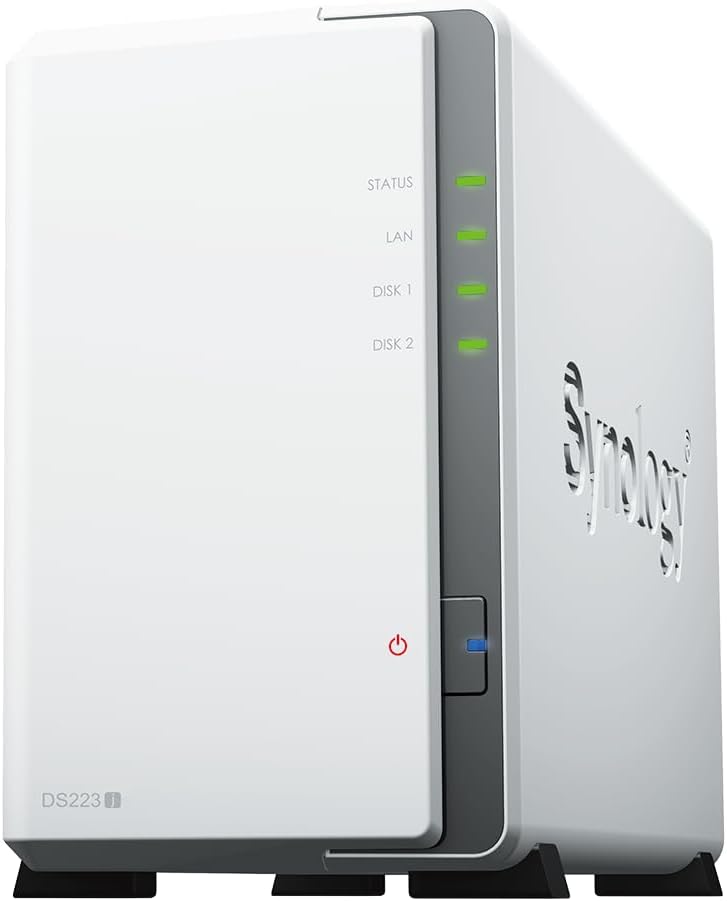
The current favourite for home users is the Synology DS223j: superb tools and apps for accessing the NAS and intelligently managing photos, fully automatic backups, remote folder synchronisation, and — new to Synology's budget "j" series — the Btrfs file system with folder snapshots for an extra layer of data security.
The Short Version
- Best overall — Synology DS223j. The best compromise under 200 euros between data security and availability, functionality and usability: Btrfs with snapshots, exemplary documentation, frugal energy use and an excellent AI photo manager with face recognition. The wealth of functions can initially overwhelm a complete beginner, and 2.5-inch drives need an optional mounting bracket.
- Fast and affordable — Asustor Drivestor 2 Pro Gen2 AS3302T v2. A 2.5-gigabit LAN port pushes transfer rates beyond 220 MB/s, the front-loading bays need no screwdriver, and Asustor backs it with three years' warranty. Watch the setup: the one-click routine formats without Btrfs, costing you snapshots.
- Fast Synology — DS225+. Synology's first 2-bay model with a 2.5-gigabit port (plus a second 1-gigabit port), more than doubling the predecessor's transfer rates, with business extras like a virtual machine manager and the best photo AI in the test. Full support is only promised with Synology-branded drives, which grates.
- Performance monster — Ugreen NASync DXP4800 Plus. Ten-gigabit LAN, four drive bays, two NVMe slots, up to 64 GB of RAM and an exemplary setup: data rates touch 1,000 MB/s. The young software still lacks folder encryption, complete PC-backup restoration and several network niceties.
- The silent flash specialist — Terramaster F4 SSD. A 600-gram all-NVMe NAS with a 5-gigabit port, 400–500 MB/s transfers, near-silent cooling and a strong AI photo manager. The enclosure and the still-pricey NVMe storage together make it a considered purchase.
A Data Hub in the Home Network
Every home NAS runs — much like a PC or notebook — its own operating system full of settings and information. Since a NAS typically has no monitor or keyboard, you reach those settings from the browser of any PC in the home network, usually via a specific web address; alternatively every manufacturer offers a Windows (and often macOS) tool that establishes the connection with one click. Manufacturers increasingly take pains to design this software so that you need not be an IT professional to understand it.
In the web menu you handle the fundamentals, such as creating shared folders and users, then grant users read or write access to those folders — or block access entirely. For the newcomer this access management is the hardest part to see through at first, not helped by every manufacturer cooking its own broth. Synology's approach is more extensive than most, but brings decisive security advantages: in its basic configuration it creates no public shared folders that any user in the home network could write to. That may seem tiresome at first, but it prevents, from day one, arbitrary participants in your home network — devices and applications included — from altering or deleting content on your NAS.
Make friends with your NAS's access management early, even though it is hardly the most exciting aspect of ownership, and accept that you will occasionally need the PDF manual or the manufacturer's online FAQs. Synology, Qnap and Asustor in particular maintain comprehensive, well-prepared documentation — take it seriously, because your data's security depends on it. Happily, NAS ownership is not only about security.
The NAS as a Media Server
Related Articles
Once the first hurdle is cleared and the new network store is filling with data, more entertaining topics beckon — above all the media server. It shares videos, pictures and music stored on the NAS across the home network without special access permissions, so every family member's photos and videos are automatically available to all. Mark the relevant shared folders in the web menu so the media server indexes the multimedia files, then pull the photo archive or film collection straight to the living-room smart TV, the laptop, the tablet or the phone.
In a multi-person household, several people can enjoy content from the media server simultaneously on different devices. Practically every network-capable playback device — smart TVs, consoles, internet radios — can access the server: just choose "media server" as the source on the device. Because devices reach the content only through the server, no credentials are needed, and there is no danger of your media treasures being accidentally deleted from the television. This process — video, music or pictures travelling from a media server over the network to a playback device — is streaming, in principle just like Netflix or a music platform, except your server stands at home rather than on the internet. If whole-house audio is the goal, that is its own equipment category — our guide to the best multiroom systems covers it in depth.
The NAS as a Private Photo Cloud
Your NAS also makes a superb central store for the photos and videos you shoot daily with your phone — the ones that sooner or later clog its storage unless you entrust them to Google's or Apple's cloud, and with Google in particular, "trust" is hardly the word. Most NAS manufacturers now provide smartphone apps (Android, iOS) that transfer your shots automatically into the photo folder on the NAS, where sometimes sophisticated management interfaces sort, process and organise them into albums. Current devices from Synology and Qnap even offer intelligent face recognition and assorted filters.
Modern NAS devices serve you — with certain limitations — even when you are not on your home Wi-Fi but logged in at some other internet access point: at friends', at work, on holiday.
Automatic Synchronisation
Related Articles
Via the manufacturer's app or web portal you get direct remote access to your NAS's shared folders — to your photos, or to that one document from the work folder you urgently need at the accountant's. Some modern NAS units use the remote connection to synchronise individual files or whole directories automatically between devices, which adds security through redundancy and allows productive work without a constant online connection.
An example: you edit a spreadsheet stored on your office notebook and delete several image files. Synchronisation applies the same changes to the corresponding folder on your PC at home; if a device is offline, the sync completes as soon as it reconnects. For this to work, the manufacturer's client software runs on every participating PC or Mac, with sync folders configured; everything flows through a central sync folder on the NAS, which can also retain multiple versions of changed or deleted files for emergency restoration. In this test field, Synology, Qnap and now Asustor support this extremely useful function.
Remote Access via Relay Services
So that remote access — and any synchronisation depending on it — works from every internet connection, manufacturers link their NAS devices through a so-called relay server. Without one, NAS units sitting behind a DS-Lite internet connection are unreachable from outside, or reachable only awkwardly under very specific conditions. If remote access matters to you, buy a device that can fall back on a relay-server connection.
Bear in mind that synchronising multi-gigabyte directories — let alone a whole HD video collection — over a remote link is not sensible; average household upload speeds remain far too slow for that. Distributed synchronisation suits selected, frequently used documents and current project data.
The Backup Problem
Some NAS units carry only one internal drive. From these we generally advise against: if that single drive fails, every byte stored on the NAS is gone — and anyone who has spent years around hard disks knows they can give up the ghost at any moment. (There are exceptions: Synology's BeeStation pairs with a relatively cheap cloud-backup tariff that can restore everything even after a local drive failure.)
A NAS should fundamentally be run so that its data survives the failure of one internal drive. For a 2-bay NAS that means two drives of the same model — or at least the same format, capacity and speed — joined during setup into a RAID 1 system, also called disk mirroring: every file is stored twice, once per drive, so the failure of either leaves your data intact on the other. In RAID 1 only half the installed capacity is usable — 4 TB from 2 × 4 TB — and we urge you emphatically to make that sacrifice for your data's safety.
The one exception: if the NAS serves purely as a backup target for the household's laptops and phones, a single internal drive may suffice, since the data then exists once on the laptop and once on the NAS, and simultaneous failure of both is very unlikely. But beware: the moment you move data to the NAS to free space on the laptop, that data has no backup copy any more. And if not just a drive but the whole NAS is damaged or stolen? Then the synchronisation function above can be the lifeline for part of your data, since synced content still resides on the configured PCs — and every device in this test pairs with one or more (often paid) cloud storage services for off-site backups of the most important data.
The Winner: Synology DS223j
From a good NAS — especially at home — we expect stored data to be genuinely safe. Alongside comprehensive protections like backups and snapshots against ransomware, a NAS should offer comfortable management, with important documents available wherever you are, including away from the home office. By the measure of this test, the Synology DS223j offers the best compromise under 200 euros between data security and availability on one side and functionality and usability on the other — the latter thanks above all to the pleasingly tidy web interface and its excellent integrated help. Synology also ships automated operating-system updates promptly when security gaps emerge, exactly as one expects from a maker of security-relevant hardware.
Setup and installation
Buyers of the empty enclosure face a little screwdriving: eight supplied screws fasten the two 3.5-inch drives in the opened housing, plus two smaller ones to close the case at the rear. The thoroughly illustrated PDF installation guide leaves few questions open. Note: fitting smaller 2.5-inch drives requires two adapters, available from around seven euros each.
The setup interface of the connected, booted NAS is reached in a browser via finds.synology.com, or through the Synology Assistant tool from the manufacturer's support area, which tracks down the NAS in the home network and leads straight into the base installation — RAID creation included — and the download of the current DSM 7.x operating system (DSM: DiskStation Manager). If no multimedia apps were installed during base setup, no shared folders may exist after first login; open "Shared Folder" in the control panel and the wizard walks you step by step through creating your first one.
Accessing the shared folders
The File Station manager handles all content directly in the web interface and moves data quickly between shared folders. Windows Explorer works too; if Windows's notoriously unreliable network discovery cannot find the NAS, Synology Assistant locates the shares far faster. A tip that applies to every NAS accessed from Windows: create a user account on the NAS with the same name and password as your Windows account, then grant it read/write permission on the shared folders — otherwise Windows nags for credentials.
Folder encryption and remote access
Synology lets you convert individual shared folders to encrypted folders even after the fact, protecting their contents from unwanted access. Many other models force the decision at folder creation, with no later change possible; some only encrypt whole volumes. The DS223j's folder-based, retrofittable encryption grants maximum freedom. For comfortable remote access, set up a QuickConnect account during initial configuration — it underpins automatic synchronisation of any NAS content via Synology Drive regardless of where your client device is logged in, and even the Synology Photos smartphone app reaches the NAS photo manager from outside through it.
Streaming and saving energy
For home-network media streaming, Synology provides its own media server as a NAS app, installed through the Package Centre — an app store in all but name, with short descriptions and categories, that extends the NAS's capabilities considerably. Beyond the three preset multimedia folders (video, music, photo), any further shared folders can be indexed and served. For pictures, the Synology Photos app adds comfortable organisation plus AI face recognition, so the photo collection becomes filterable by faces. The initial scan takes a long time with large collections, and you should budget further time for assigning or hiding irrelevant faces — but the effort pays off.
A home NAS is not hammered around the clock with streaming, sync and backup jobs; mostly it just hums along. The DS223j's sleep mode therefore deserves attention: configure how long without access before the internal drives spin down, and consumption drops to a remarkably frugal 3.1 watts. Accessing the NAS in this phase wakes the drives with a small delay — common to all NAS devices in sleep. Frequent client access to the media server or Synology Drive can postpone sleep considerably; for periods when the store is definitely unused, a scheduler powers it off completely and boots it again at the desired time, saving even more energy.
Backup and security
Like its predecessor, the DS223j leaves nothing wanting in backups and synchronisation: automated backups to attached USB storage, to another NAS on the network or to assorted cloud services are set up in moments, as are folder synchronisations between clients and NAS via Synology Drive. The decisive upgrade over the DS220j is folder-based snapshots, which freeze the current state of any shared folder for later restoration. If files in a snapshot-protected folder are accidentally changed or deleted — or ransomware encrypts them — snapshots roll the damage back. That is a crucial extra security function still very rare in NAS devices under 200 euros. Note that snapshots require the storage volume to be formatted with the Btrfs file system during initial setup, which the setup assistant itself recommends.
Finally, Synology keeps its systems' attack surface small: the Nessus vulnerability scanner finds neither critical nor high-severity gaps in the current DSM, and the problematic SMBv1 protocol ships disabled, as verified with Nmap. Independent reviewers have reached similar verdicts, praising the intuitive operation, quiet running and price while noting the fiddlier drive installation of the non-front-loading case and the missing 2.5-inch brackets — fair points that do not dent the overall picture of a very economical, very complete home NAS.
Fast and Affordable: Asustor Drivestor 2 Pro Gen2 AS3302T v2
The Drivestor 2 Pro Gen2 is a 2-bay NAS with a Realtek quad-core CPU, 2 GB of RAM, three USB 3 ports (5 Gbit/s, Type A) and a fast 2.5-gigabit LAN port, accepting 3.5- and 2.5-inch SATA drives and SSDs. Setup follows the detailed, richly illustrated quick-start PDF; two 16 TB drives slot in comfortably and screw-free through the front-loading bays behind a magnetic cover plate. Initialisation works via software, smartphone app or browser; the thorough software manual supplies the important tip of appending port 8000 to the NAS's IP address, though its 160-plus pages sadly lack a table of contents.
One genuine trap: after the automatic ADM download you choose between one-click setup and customised setup. Anyone wanting snapshots must choose the latter, because only there can the Btrfs file system be selected — one-click setup formats the drives with Ext4, which supports no snapshots. In the customised path, also ensure RAID 1 is selected with both drives. Registering a free Asustor ID during initialisation is sensible for later remote access.
Individual shared folders can be encrypted, conveniently even after creation with data inside. But note the quirks: storage quotas for user accounts only work on Ext4 volumes, not Btrfs; snapshots cover the entire volume rather than individual folders as with Synology; and a RAID 1 pair yields exactly one volume, with no multiple pools — rarely a problem at home, but worth knowing.
Transfer performance at the 2.5-gigabit port is good: 220–230 MB/s reading and writing, more than double a 1-gigabit NAS, dropping below 90 MB/s only when writing into an encrypted folder. Consumption is reasonable — 16 to 20 watts idle and writing, 5.6 watts with drives asleep. The App Central is huge at around 150 apps, including Docker containers and the Portainer CE manager for building your own. The Photo Gallery app finally adds AI person recognition; the beta delivers acceptable results, though manual tagging of faces the AI missed is still absent. In the simulated drive failure — one RAID 1 drive yanked mid-operation — a streaming video paused about five seconds and then carried on, and after reinsertion the NAS began rebuilding the RAID by itself with no further settings required. With three years' warranty on top, this is the value pick for anyone prioritising fast home-network transfers.
The Fast Synology: DS225+
The DS225+ is Synology's first 2-bay model with a 2.5-gigabit port, joined by a second ordinary 1-gigabit port, an Intel Celeron CPU and 2 GB of RAM expandable to 6 GB. We measure 242 MB/s reading and 238 MB/s writing — more than double the predecessor DS224+ — with encrypted-folder reads barely slower at 228 MB/s and encrypted writes dipping to a still-respectable 157 MB/s.
One corporate decision needs flagging. Since Synology began selling its own-branded drives, the compatibility lists for current models no longer name Seagate or Western Digital media, and using non-Synology drives may mean restricted support in a damage case. Testing with Synology's HAT drives and then two Seagate IronWolf disks, both worked flawlessly — the storage manager merely displays a friendly note recommending Synology drives. In our view the customer should decide which NAS-grade disks go into a purchased enclosure; as long as the note stays a note and other brands are not blocked, the recommendation stands.
Otherwise this is the familiar excellence with more speed: screwless front-loader installation, comfortable browser setup with a Synology account for QuickConnect remote access, Btrfs for snapshots against ransomware and accidents, two-factor authentication strongly encouraged, retrofittable folder encryption, drives that sleep down to 4.3 watts, a power scheduler and wake-on-LAN on both ports. Synology Photos here recognises not only faces but also themes — animals, food, sky, plants, mountains and more — and despite the documented 4 GB RAM requirement, theme recognition worked on the preinstalled 2 GB, processing 1,100 photos in about 22 minutes. iPhone owners with large HEIC libraries face one awkwardness: server-side HEIC/HEVC conversion is gone, so the first bulk upload should run through the Synology Image Assistant browser plugin, which generates JPG previews using the PC's processing power; subsequent phone uploads create previews automatically in the app. The Package Centre adds the media server plus business-grade tools — Virtual Machine Manager (best with the RAM upgraded to 6 GB), Container Manager, Active Backup for Business, Google Workspace and Microsoft 365. And from 2025 Synology raises the warranty on its Plus models from two years to three.
The Performance Monster: Ugreen NASync DXP4800 Plus
The DXP4800 Plus is the larger sibling of the DXP2800: an Intel five-core processor, 8 GB of RAM expandable to a mighty 64 GB, and a roughly four-kilogram, high-quality aluminium case with four front-loading bays for 3.5-inch or 2.5-inch SATA drives plus two M.2 slots for NVMe SSDs (2280), usable as cache or as ultra-fast volumes. The complete hardware setup comes described in a printed German-language manual. The 3.5-inch drives install without screws; fitting the optional NVMe sticks means unscrewing the base plate, and Ugreen's supplied thick silicone pads are essential, because the modules otherwise exceed 75 degrees under sustained load.
The headline is the connectivity: alongside a 2.5-gigabit port sits an ultra-fast 10-gigabit LAN port. Against an SMB share on an M.2 NVMe we measure net read rates up to 1,100 MB/s and writes up to 1,014 MB/s. The mechanical drives are naturally slower — about 250 MB/s writing, and 180–200 MB/s reading from a RAID 5 pool of three disks, for which the 2.5-gigabit port would comfortably suffice — but configure the NVMe as read/write cache and the combination reaches 900 MB/s writes and over 1,000 MB/s reads when content sits in cache. Generous USB (including two USB 3.2 Gen 2 ports) and a front SD card slot please photographers, who can pull camera photos onto the NAS comfortably through the Ugreen NAS smartphone app.
Setup, found via find.ugnas.com, is exemplary: account creation, remote access, UGOS Pro update, then a guided walk through storage pool, RAID level (RAID 5, say), Btrfs for file versioning, and a final prompt to create shared folders. This is exactly how network-storage onboarding should look for users not yet fluent in pools, volumes and RAIDs — established manufacturers could learn from it. Two factory defaults mar it: SMB ships disabled, and Windows Explorer only sees the shares after additionally enabling the wsdd2 service. Both belong on by default.
The AI photo manager impresses for speed — under 7 minutes to thumbnail 1,150 photos, with quick person recognition; the optional object, pet and scene recognition takes another 30 minutes and returns mixed results, though keyword search over photos partially delivers. Docker and a notably comfortable VM manager (with browser-window access to running machines) extend the system, and the 64 GB RAM ceiling gives virtualisation real headroom. The integrated video-player function is a delight: connect the rear HDMI port to a television, play any stored video up to 4K with the phone app as remote — audio always downmixed to stereo — and even USB-attached media plays.
The gaps are equally real. Restoring PC folder backups made with the Ugreen tool failed in our test — the tool claimed no backup existed and aborted, leaving manual copying as the workaround. Shared folders and volumes cannot be encrypted. There is no e-mail notification, no VPN server, no SNMP for monitoring, snapshots are unwieldy, and the app selection hovers around a sparse twenty. The hardware is upper class; the software is still earning its way there. At just under 600 euros, the price reflects the extraordinary equipment — for large storage needs and high performance demands, the most flexible machine in the test.
The Silent Flash Specialist: Terramaster F4 SSD
The F4 SSD occupies a special position: the 600-gram enclosure looks like a NAS miniature because it takes no 3.5-inch drives at all — inside sit four PCIe M.2 slots for NVMe SSDs. The rear carries three fast 10 Gbit/s USB 3 Gen 2 ports (one Type C, two Type A) and a multi-gigabit LAN port linking the little NAS to the network at up to 5 Gbit/s; exploit it fully and you need a correspondingly fast multi-gigabit switch or router. The rear HDMI output currently has no useful function, showing only the TOS console when connected to a monitor.
Installation is pleasingly simple: one hand-loosenable screw opens the case, the supplied screwdriver fits the SSDs, 8 GB of DDR5 RAM comes preinstalled (replaceable up to 32 GB — there is a single SODIMM slot, so the existing module must be swapped, not joined), and two near-silent fans in the base push warm air out through the top. The "Installation Video Guide" on the manufacturer's channel walks through the hardware setup vividly, and the TNAS PC tool finds the NAS if the browser cannot. The auto-setup creates a TRAID with a Btrfs volume after a few clicks — an advanced path with custom pools and volumes exists for those who want it — and after creating a main account and notification address you land in a tidied-up TOS 6 web menu with a public share already in place. Even the German online help has become markedly better.
Performance sits exactly where the port suggests: roughly 480 MB/s maximum writes and — interestingly slower — about 380 MB/s reads with very large files, far beyond any 2.5-gigabit NAS and well short of a 10-gigabit one. A second LAN port can be added trivially via a USB-to-LAN adapter; two different USB3-to-2.5GbE adapters worked first time. Consumption is moderate: under 14 watts idle with four SSDs (9.2 watts with two), around 25 watts writing. The HDD sleep mode shown in the menu is irrelevant here; use the on/off scheduler instead, activate wake-on-LAN, and leave "Auto Power On" enabled — after a power cut, scheduler and WoL only work again once the NAS has rebooted at least once.
Remote access runs through a Terramaster account via relay, including from the TNAS Mobile app, whose connection rides a VPN tunnel (an active VPN on the phone gets terminated). Like Ugreen, Terramaster packs everything into one well-organised app rather than several. The backup section gathers a large set of functions, with one caution: the folder-based snapshot feature restores contents reliably, but the volume-based "file system snapshot" does not restore file contents — and snapshot-enabled folders appear only in the NAS file manager, not Windows Explorer. One security gap demands action: SMB1 ships enabled, and the otherwise helpful security adviser does not mention it — switch to SMB2 in the advanced file-service settings yourself.
The Photos AI app, installed from the App Centre, is fast on this hardware: under 10 minutes to index a thousand photos, build previews and run face and scene recognition. Wrongly classified scenes re-sort easily; what is missing is manual tagging of people the AI missed, which Synology offers. Docker and VirtualBox apps serve advanced users, though the app catalogue still trails Synology and Qnap — the gap narrowed with TOS 6, and one hopes the idle HDMI port gains a function in TOS 7, as Ugreen has demonstrated. Just remember the true cost: the enclosure price plus four still-expensive NVMe modules.
Also Tested
Terramaster F2-425
A 2-bay front-loader with 2.5-gigabit LAN, three USB 3.2 ports (one 5 Gbit/s, two 10 Gbit/s), a functionless HDMI output, an Intel Celeron N5095 and 4 GB of RAM (replaceable up to 16 GB). Drive installation is screw-free, the German PDF manual is very good, and reads hit a brisk 240 MB/s even from encrypted folders. Writes, though, fluctuate strongly between barely 100 and a good 250 MB/s — roughly 160–170 MB/s averaged — and consumption runs high: about 30 watts writing, 21 idle, 12.5 in a sparingly visited sleep mode. The Photos AI is genuinely quick (about 10 minutes for 1,100 photos including face and scene recognition), TOS 6 brings a security adviser (which again overlooks the enabled SMBv1 — fix it manually) plus an application-control SPC mode and an isolation mode that cuts the NAS off from the internet entirely. The sore point is hot-plug behaviour: pulling a RAID 1 drive mid-stream killed the video outright where most front-loaders carry on, and after reinsertion the rebuild required manual intervention in the web interface.
Qnap TS-216G
Qnap's better-equipped home 2-bay: the same ARM Cortex A55 as the cheaper TS-233 but with a 2.5-gigabit second LAN port and double the RAM at 4 GB. Transfers confirm the upgrade — about 180 MB/s reading and over 200 MB/s writing — though encrypted-folder access is no faster than its little sister, the shared CPU being the limit. The dual ports enable Qnap's "service binding": pin the web menu, SSH or FTP to one port when the NAS spans subnets. USB is stingier — two outdated USB 2 ports at the rear, one USB 3.2 Gen 1 at the front with a configurable copy button. Storage setup is a genuine beginner hurdle: a RAID 1 pool with an unencrypted thick or thin volume is the right choice, because only those support snapshots (always volume-wide at Qnap); the excellent online help and PDF manual earn their keep. Volumes encrypt only at creation; folders (except Public) also encrypt later. The HBS 3 Hybrid Backup Sync app gathers the vast backup and sync options; the ARM chip rules out VMs but Container Station covers Docker and LXD — and powers the QuMagie photo manager, whose AI object recognition impressed most in the test with extensive, mostly sensible categorisation. iPhone users suffer: HEIC/HEVC display requires a 12-dollar licence for the Cayin media player app (the free licence excludes exactly those formats), which Synology and Ugreen solve more gracefully. Power behaviour wants patience: with thick volumes the drives never slept; with thin volumes they slept only minutes at a time; only static volumes — which forfeit snapshots — slept reliably. You choose between sleep mode and snapshots. The scheduler works dependably, surviving brief power cuts, but allow almost five minutes for boot-up and three for shutdown.
Synology BeeStation
A one-bay NAS with a 4 TB drive preinstalled — no RAID mirroring possible — aimed at the absolute beginner. Setup runs in the browser or via QR code, requires a Synology account (or Google/Apple sign-in), and beyond a serial number and a few confirmations is fully automatic. The two main applications, BeeFiles and BeePhotos, exist as web apps, smartphone apps and a desktop client. By default all connections route through Synology's relay server — accessible anywhere, but if your home internet fails you cannot reach the device even on the local network until you create a local user account (which itself requires a working connection once) and, for SMB access without BeeStation software, enable the SMB server in settings. The BeePhotos AI pleased with location, face and theme assignment, and link-based sharing (with passwords and expiry dates) plus "photo requests" — letting recipients upload into an album — are genuinely clever. Backups are all-or-nothing: USB backups always cover the entire contents, never selected folders, and the BeeProtect cloud backup (free month, then 72 dollars a year) covers the whole device regardless of volume with up to eight versions, client-side AES-256 encrypted; daily internal restore points recover the whole BeeStation, while individual files come only from external backups. One-way and two-way sync with Google Drive, OneDrive and Dropbox is built in. The gaps: no DLNA media server (streaming to the TV needs Chromecast or AirPlay from the apps, demanding suitably equipped hardware at both ends), no power scheduler, no wake-on-LAN. Consumption is tiny — barely 6 watts idle, 2 in rest. For the simplicity-first buyer with the cloud-backup tariff, genuinely interesting; experienced NAS users will find the functionality too constrained.
Ugreen NASync DXP2800
The smaller Ugreen: Intel four-core, 8 GB RAM, aluminium case, two screw-free front bays plus two M.2 NVMe slots (cache or fast volumes), a 2.5-gigabit port, two front USB 3.2 Gen 2 ports and a 4K-capable HDMI output. The guided setup earned a "bravo": pool, RAID, Btrfs-or-ext4 choice and a robot avatar reminding you to create shared folders — exactly right for newcomers, and the UGOS Pro interface is tidy and slightly Synology-esque. Transfers reach 200–250 MB/s on the HDD RAID and up to 280 MB/s on NVMe volumes; consumption is a fair 17 watts idle and under 10 in HDD sleep, with a reliable scheduler and wake-on-LAN that even triggers from the phone app. The same software gaps as its big sibling apply: no folder or volume encryption, PC backup restoration only via workarounds, confusing and under-documented file-versioning settings, and a thin app catalogue of under twenty. The photo AI recognises people well but objects patchily (vehicles and pets only in our test, where Qnap's recognition goes further), the VM app gets even an interested beginner to a running virtual OS remarkably quickly, and the HDMI video-player with phone-app remote (stereo downmix) is as pleasing here as on the DXP4800 Plus.
Qnap TS-233
The entry Qnap 2-bay gives little away to the TS-216G in functionality and apps; the differences are hardware. Installation means opening the case via one base screw; the drives then mount screw-free and standing, making the unit taller but smaller-footprinted. At its single 1-gigabit port we measure 110/108 MB/s read/write — half the TS-216G. Snapshots again require thin or thick volumes (static volumes exclude them), QuMagie again delights — with the same 12-dollar HEIC licence annoyance for iPhone users — and the KI processing runs surprisingly briskly for so small a box. It sleeps at barely over 4 watts but rarely enters sleep even with the idle timer at five minutes; the scheduler compensates, so long as you budget the full six minutes this NAS needs to boot. USB equipment is frugal: one USB 3.0 port at the front with copy button, two USB 2.0 relics at the rear delivering a glacial 30 MB/s.
Synology DS124
Synology's other one-bay, and the BeeStation's opposite: an empty enclosure with nearly the full functionality of the 2-bay siblings, including the richly stocked Package Centre, KI photo management, remote access, direct DLNA streaming without Apple/Google intermediaries, fine-grained snapshot/external/cloud backup jobs (a boon for the advanced, potentially overwhelming for beginners) and a power scheduler atop already-frugal consumption. The fundamental one-bay caveat applies in full: no mirroring, so as a main NAS its contents must be backed up to sufficiently large external or network storage. Synology's C2 cloud storage costs a steep 84 euros a year per terabyte (252 for three) — far less attractive than the BeeStation's flat-rate BeeProtect — so most buyers should sooner reach for a 2-bay like the test winner. As a well-equipped second NAS for the ambitious home network, however, it earns its place.
Synology DS224+
Everything the test winner does, plus: a front-loader case with screw-free 3.5-inch mounting and adapter-free 2.5-inch support, a stronger CPU, RAM expandable from 2 to 6 GB, and two gigabit ports with link aggregation for higher aggregate throughput when several clients transfer simultaneously — though any single client still tops out at 113 MB/s net. The Package Centre adds business apps like MailPlus and the Virtual Machine Manager (realistically requiring the RAM upgrade), and Synology Photos gains object recognition on top of faces (requiring at least 4 GB RAM — more cost again). At nearly double the test winner's price, with key extras locked behind RAM purchases and no multi-gigabit port where this price demands one, the advantages are too dearly bought for a recommendation.
Asustor FS6706T
At almost 500 euros before storage, a flat, unconventional all-flash NAS: four case screws reveal six PCIe M.2 slots, with SSDs clipping in screw-free (we fitted four IronWolf 525s following Asustor's thorough PDF). Two 2.5-gigabit ports carry the speed networkwards — up to 280 MB/s from a RAID 1 NVMe pair — but this hardware cries out for the 5- or 10-gigabit port Asustor withheld; SMB3 Multichannel exists in beta but demands a client with two suitable LAN interfaces. Fully populated with six 4 TB modules the capacity reaches 24 TB — at 300–350 euros per module, some 2,000 euros of storage, far too dear for ordinary network-storage duty. Its justification lies elsewhere: a fully loaded FS6706T weighs little more than the empty case, shrugs off knocks that would worry fragile spinning drives, and makes none of the characteristic rattling — ideal for noise-sensitive environments like recording studios, or as a semi-portable fast store for photographers and videographers processing raw material on location. The HDMI output could support that role, but the Asustor Portal app and its add-ons access stored content so awkwardly that the result disappoints. Energy management pleases: a reliable scheduler that survives power cuts, constant ~14 watts on (no sleep mode exists for flash), ~20 watts writing. One structural quirk: despite six slots there are no storage pools — each volume needs its own RAID, each drive belongs to exactly one RAID, and capacity goes begging; at least every Btrfs-formatted volume gets snapshots.
Asustor Drivestor 2 Pro AS3302T
The previous-generation Drivestor: large base functionality, the huge app selection, and the same fast 2.5-gigabit port that made it the speed recommendation of its day — we measured then-record net rates around 200 MB/s with fast IronWolf drives, achievable when client and switch match the port, and useful at a Wi-Fi 6 router's single 2.5-gigabit port when several clients hit the NAS at once. Screw-free 3.5-inch installation; the ACC setup tool demanded a Microsoft package and driver on our notebook but then found and initialised the NAS without drama. Two warnings: the one-click installation must be set to "maximum security", or it silently builds a RAID 0; and in RAID 1 this model supports only ext4, not Btrfs — file restoration via snapshots exists only for iSCSI LUNs, rare at home. All other backup paths (USB, network, cloud, even old-fashioned FTP) are present, and Asustor's folder synchronisation with Windows clients — including remote — now rivals Synology's and Qnap's comfort. Folder encryption works retrofittably, with reads from encrypted folders at about 85 per cent of normal and writes at roughly half. Guest access requires deliberately enabling the deactivated guest account. Consumption is fine for a fast NAS — under 7 watts in energy-saving mode, 0.3 watts off with WoL armed and working flawlessly at the 2.5-gigabit port. Photo Gallery 3 manages photos with phone auto-upload but does not yet reach the modern AI solutions of Synology or Qnap.
Synology DS220j
The test winner's predecessor, still on sale and still a very good NAS — but without Btrfs and snapshots, which makes the successor the clear buy at a new purchase. Otherwise the familiar formula: two 3.5-inch drives screwed into the enclosure following the well-illustrated PDF; setup via find.synology.com or Synology Assistant; File Station; retrofittable folder encryption; QuickConnect remote access with Synology Drive synchronisation from anywhere; the media server scanning shared folders for the home network. The energy-saving function drops consumption to a remarkably thrifty 3.5 watts with sleeping drives — under 1 watt in scheduled rest. Backups run to USB, another NAS or the cloud, sync via Synology Drive, and security checks out: Bitdefender's Home Scanner found no known gaps, and SMBv1 disables cleanly, as Nmap confirmed.
How the NAS Devices Were Tested
Every NAS — usually sold as an empty enclosure — received two 3.5-inch drives configured as RAID 1, yielding first impressions of usability, equipment, documentation and functionality. Since late 2021 all tests use Seagate IronWolf drives built for NAS duty; for the faster models with NVMe slots and multi-gigabit ports (2.5, 5 or 10 GbE), IronWolf NVMe SSDs join them.
Measured and probed: transfer performance in gigabit and multi-gigabit networks; power draw writing, idle and at rest; the energy-saving functions (sleep mode, on/off scheduler); and how simply remote access can be configured — and whether it genuinely works on every kind of home connection. Emergency drills matter too: how does a NAS behave when one RAID 1 drive fails, how easily does the user swap the defective disk, and does the NAS reliably boot after a power cut during its rest phase? All the important functions get exercised — backup and sync, app ecosystems, photo management with person recognition, automatic phone-photo upload — and the Nessus vulnerability scanner plus the Nmap security scanner check for known, unpatched security holes.
Frequently Asked Questions
Which NAS is best for beginners?
Currently the Synology DS223j: excellent access tools and apps, fully automatic backups in every direction, remote folder synchronisation, and — rare at this price — the Btrfs file system with folder snapshots for extra protection. The alternatives above cover faster transfers, all-flash silence and maximum performance.
Who actually needs a NAS?
Fundamentally anyone who handles larger files (videos, backups) or larger collections (photo archives) in the home network and wants access from several devices — without re-plugging drives or hunting for sticks.
Why a NAS, when the cloud stores my data partly for free?
The difference is data control. With cloud services your photos and files sit on someone else's servers, whose operators can mine the usage data for their own purposes — typically personalised advertising. If you would rather keep your data local and under your own control, a NAS is the better home. If that does not bother you and you would rather not manage storage at all, a cloud subscription often gets you there more comfortably.
Why is a NAS called a "private cloud"?
A modern home NAS with photo management, remote access and smartphone apps offers comfort similar to a cloud subscription — extensible almost arbitrarily through NAS apps — with the great difference that all data resides at your home, in your own four walls, accessible first and only to you. Hence "private cloud": your data is administered by you, not by Google and friends.
What about security in a private cloud?
You bear full responsibility for the data on your NAS. Mirror your drives (RAID 1), make regular external backups to attached USB or further network storage, equip every client with write access with good and current malware protection, and keep the NAS operating system supplied with the manufacturer's latest firmware updates. None of it is glamorous; all of it is what makes the private cloud trustworthy.
The Bottom Line
The 33-device field sorts into clear roles. The Synology DS223j wins because it brings genuinely rare protections — Btrfs snapshots against ransomware and slips of the finger — under 200 euros, wrapped in the most mature software and documentation in the business. The Asustor Drivestor 2 Pro Gen2 buys conspicuous speed for modest money, the DS225+ adds that speed to the Synology ecosystem with business extras on top, the Ugreen DXP4800 Plus delivers flat-out performance that embarrasses machines twice its price while its software catches up, and the Terramaster F4 SSD makes the all-flash case: silent, featherweight and quick. Whatever you choose, the rules of ownership stay constant — mirror the drives, schedule the backups, learn the access management, disable SMB1 where the maker has not, and treat firmware updates as non-negotiable. A NAS is the most consequential storage purchase a household makes; configured with a little care, it repays that care for a decade.