Solid-state drives have become essential in every modern PC and laptop, and the compact M.2 NVMe format — a small stick that clips straight onto the motherboard — is now the standard. One caveat for 2026: drive prices are rising, and a genuinely cheap NVMe drive has become a rare thing, so it is worth checking the current listing before you commit. These are the best M.2 NVMe SSDs to buy in 2026, followed by a full guide to choosing the right one for your PC or PlayStation 5.
The short version
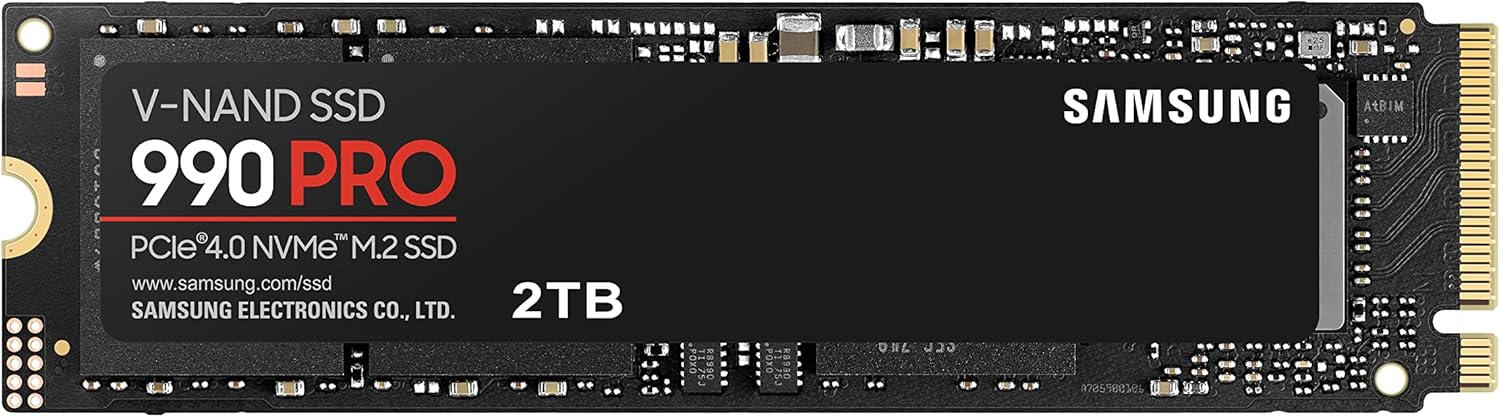
- Best overall — Samsung 990 Pro. The dependable high-end PCIe 4.0 drive, ideal for gaming PCs and the PS5.
- Fastest — Samsung 9100 Pro. The quickest PCIe 5.0 drive money can buy, aimed at professionals.
- Best value — Crucial P310. Strong everyday performance for less, and often on offer.
- Best affordable PCIe 5.0 — Crucial P510. Gen 5 speeds without the flagship price.
Best overall: Samsung 990 Pro
Samsung has been the undisputed leader at the high end for several years, and the 990 Pro remains the safe choice for most people building or upgrading a PC. It is built around TLC memory and sold in capacities from 250GB to 2TB.
The headline is that the throughput is excellent — the source quotes close to 7.1 GB/s reading and 5.2 GB/s writing over PCIe 4.0, comfortably fast enough for gaming, everyday computing and a PS5. (Its own summary box lists slightly higher figures, so treat any single quoted number as a manufacturer ceiling rather than a measurement.)
The thing to watch is heat: power draw is high and the drive warms up quickly, so it is strongly recommended that you fit it under a heatsink — whether that is one built into your motherboard or bought separately.
Check the price on Amazon UK · Search Amazon US
Fastest: Samsung 9100 Pro
If you want the outright quickest drive available in 2026, the 9100 Pro is the 990 Pro's successor. It takes full advantage of the PCIe 5.0 interface to reach headline speeds of up to 14.8 GB/s reading and 13.4 GB/s writing, adds advanced thermal control, and runs from 1TB up to 8TB.
It is aimed squarely at professionals handling heavy workloads rather than everyday users, so it carries a premium and needs a recent PCIe 5.0 motherboard. For most people it is more drive than they need — but nothing else is faster.
Check the price on Amazon UK · Search Amazon US
Best value: Crucial P310
The Crucial P310 is the pick for anyone who wants strong performance without paying flagship money. It sticks to PCIe 4.0 with TLC memory, comes in 1TB, 2TB and 4TB, and is rated at up to 7.1 GB/s read and 6 GB/s write in theory — lower than the Gen 5 drives, but perfectly honest figures that suit the vast majority of PCs and consoles.
Above all it stays cheap and is frequently discounted, which is rare in the current market. For most gamers and everyday users it is the sensible buy, and the source's own small-budget gaming recommendation.
Check the price on Amazon UK · Search Amazon US
Best affordable PCIe 5.0: Crucial P510
If you want Gen 5 speed but not a Gen 5 price, the P510 is a high-end SSD without the high-end price tag. It is rated at up to 11,000 MB/s read and 9,500 MB/s write, is PCIe Gen 5 and is backwards-compatible with PCIe 4.0.
It is the smart middle ground for anyone with a newer motherboard who wants headroom without stretching to the flagship.
Check the price on Amazon UK · Search Amazon US
How to choose an M.2 NVMe SSD
SATA or NVMe?
There are two main types of M.2 SSD: SATA drives, which use the older AHCI protocol, and NVMe drives, which use PCI Express. It matters, because SATA was designed for mechanical hard drives and tops out at about 600 MB/s in its third generation — so even the fastest SATA SSD is capped there. NVMe was built for flash storage and uses the far quicker PCI Express bus, unlocking speeds of several gigabytes per second. Almost every M.2 drive sold today, and almost every recent motherboard, is NVMe, which is what you want.
PCIe 4.0 or PCIe 5.0?
PCIe 5.0 arrived with Intel's 12th-generation processors, barely after PCIe 4.0 had become mainstream. The interface bandwidth is doubled, and the first compatible drives show throughput gains of much the same order.
The honest answer, though, is that PCIe 4.0 is enough for nearly everyone. Drives like the 990 Pro and the P310 deliver in the 5–7 GB/s range, which is plenty for gaming, everyday use and content on a PS5. A Gen 5 drive such as the 9100 Pro reaches up to 14.8 GB/s, but that only benefits professionals moving very large files, and those drives cost significantly more and need a recent board — an Intel Z790/X870 or AMD X670 class motherboard. For the vast majority of buyers, a good PCIe 4.0 drive remains the rational choice in 2026.
Memory type: SLC, MLC, TLC and QLC
Every SSD lists the type of flash memory it uses, and it directly affects performance and endurance. Ordered from the most capable and durable (and most expensive) to the cheapest:
- SLC stores one bit per cell. It is the most expensive, generally reserved for professional applications, and the fastest and most durable.
- MLC stores two bits per cell, with lower endurance.
- TLC stores three bits per cell and is the sweet spot in most good consumer drives — including the 990 Pro and the P310 here.
- QLC stores four bits per cell. It is the cheapest and allows bigger capacities, but trades away performance and durability.
To offset slower memory, manufacturers add a faster cache, which keeps speeds high for light everyday use but can run out during very large transfers.
Cooling and real-world speeds
Take the headline speeds on the box with a pinch of salt: those figures are obtained in ideal conditions, and several things bring them down. QLC drives slow once their cache fills, and heat is the other factor — like a processor, an M.2 SSD needs to stay cool, and it will throttle to protect itself during a long transfer. That is exactly why so many motherboards now include heatsinks over their M.2 slots. If copying a large game library does not hit the rated speed, that is entirely normal.
SSDs, gaming and the PS5
Compared with a mechanical hard drive, an SSD will not deliver a real performance gain in the sense most people mean: do not expect a significantly higher frame rate, because the processor and the graphics card decide that. What its lower access times and higher throughput transform is loading. Every game starts faster and loads environments and maps more quickly, and demanding titles — open worlds above all — feel smoother for it. The very fast drives in the PS5 and Xbox Series consoles have pushed this further still.
For the PS5 specifically, any PCIe 4.0 NVMe M.2 drive of at least 1TB will do the job; both the Samsung 990 Pro and the Crucial P310 are suitable choices.
Is your PC compatible, and how do you fit one?
An M.2 SSD installs on an M.2 connector, directly on your motherboard. Every recent board has one — check the manual to confirm its location and that it supports NVMe, which is what gives you the best performance.
Fitting it is one of the easiest upgrades there is. Locate the M.2 connector, remove the retaining screw and the heatsink if one is fitted, slide the drive into the connector, then secure it flat to the board with the screw or under the heatsink. The drive then appears in the BIOS, and once you have initialised and formatted it in Windows it is ready to use.
Not enough M.2 slots?
Outside a few ultra-high-end boards, the vast majority of PCs have only two NVMe slots. You can add more with a PCI Express expansion card: a basic one taking a PCIe 3.0 drive costs very little, and cards with four slots wired for PCIe 4.0 cost several times that while remaining far cheaper than replacing the motherboard. It is an inexpensive way to fill a machine with fast storage.
Which SSD should you buy?
For most gamers and everyday PCs, the Crucial P310 offers the best balance of price and speed. The Samsung 990 Pro is the dependable step up, the source's own mid-range favourite, and the safe pick for a PS5. Choose the Samsung 9100 Pro only if you have a PCIe 5.0 motherboard and genuinely move huge files, and the Crucial P510 if you want Gen 5 speeds on a tighter budget.
Whichever you pick, buy at least 1TB, add a heatsink for the high-end drives, and — given how fast prices are moving — check the current listing before you buy. If you also want fast storage you can carry between devices, see our best portable SSDs guide; and if you are building a machine, our best desktop processors guide will help.
Frequently asked questions
Is a PCIe 5.0 SSD worth it? For most people, no. PCIe 4.0 drives already deliver in the 5–7 GB/s range, which is more than enough for gaming, everyday computing and the PS5. PCIe 5.0 doubles the interface bandwidth and the drives show gains of a similar order, but it only pays off if you routinely move very large files — and it costs more and needs a recent motherboard.
Do I need a heatsink? For the Samsung 990 Pro, yes — it draws a lot of power and heats up quickly, and fitting it under a heatsink is strongly recommended. Any drive can throttle to protect itself during a long transfer, which is why many motherboards now include M.2 heatsinks.
Will an SSD make my games run faster? It will not raise your frame rate — that is down to your processor and graphics card — but it dramatically cuts loading times, so games start faster, levels load quicker and open-world titles feel smoother. On the PS5 and Xbox Series consoles, fast NVMe storage has taken this further again.
What is the best SSD for a PS5? Any PCIe 4.0 NVMe M.2 drive of at least 1TB works. Both the Samsung 990 Pro and the Crucial P310 are suitable.
SATA or NVMe for an older PC? If your motherboard only has an M.2 slot that supports SATA, a SATA SSD is still a large upgrade over a mechanical hard drive — but it caps at around 600 MB/s. If your board supports NVMe, and almost every recent one does, choose NVMe for several times the speed.
What if my motherboard has run out of M.2 slots? Most boards have only two. A PCI Express expansion card adds more without replacing the motherboard, and four-slot PCIe 4.0 versions are readily available.
How this guide was made
This is an editorial buying guide drawn from a published hardware buying guide, curating the strongest M.2 NVMe SSDs for gaming, everyday computing and the PS5 and weighing speed, capacity, memory type, cooling and value. Recommendations are based on the source's published specifications and assessments, not on testing by Truthful Reviews. Prices are unusually volatile in 2026, so check the current listing before buying.